Password
This article will show how to use the password components and what options a Descoper can change to customize their users' experience.
Password Input
Note
The max password length is 64 characters.
The login password input is a standard input field that allows the user to enter a password. The new password input allows the user to enter a new password, and has options to confirm the password and preview the password policy.
Using It for OTP or TOTP Codes
Place a login password input on an OTP or TOTP verification screen to collect the code in a single field instead of the segmented One Time Code input. The verify action reads whichever of the two inputs is populated.
Using It to Set a Password
The Sign Up / Password and Update Password actions both read the password from either the login password or the new password input. Reach for login password when the confirmation field and policy previewer that come with new password don't suit the screen. When a screen has both inputs, new password wins.
Note
The input you pick only changes the screen. Your project's password policy and password history check apply to the stored password either way, so a password that fails the policy will fail the action even when no previewer is shown.
Password Matching Error Message
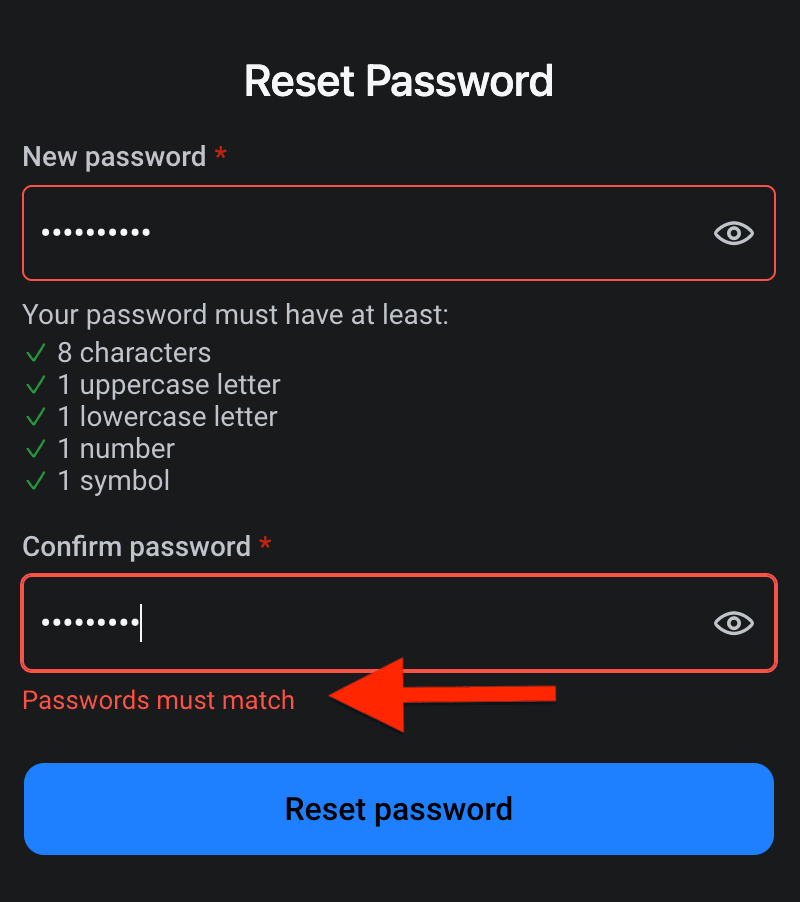
You can add a custom error message on the confirm password field of the new password input by turning on the toggle for Password confirmation. When you have this configured, the message will be displayed when both the passwords fields do not match.
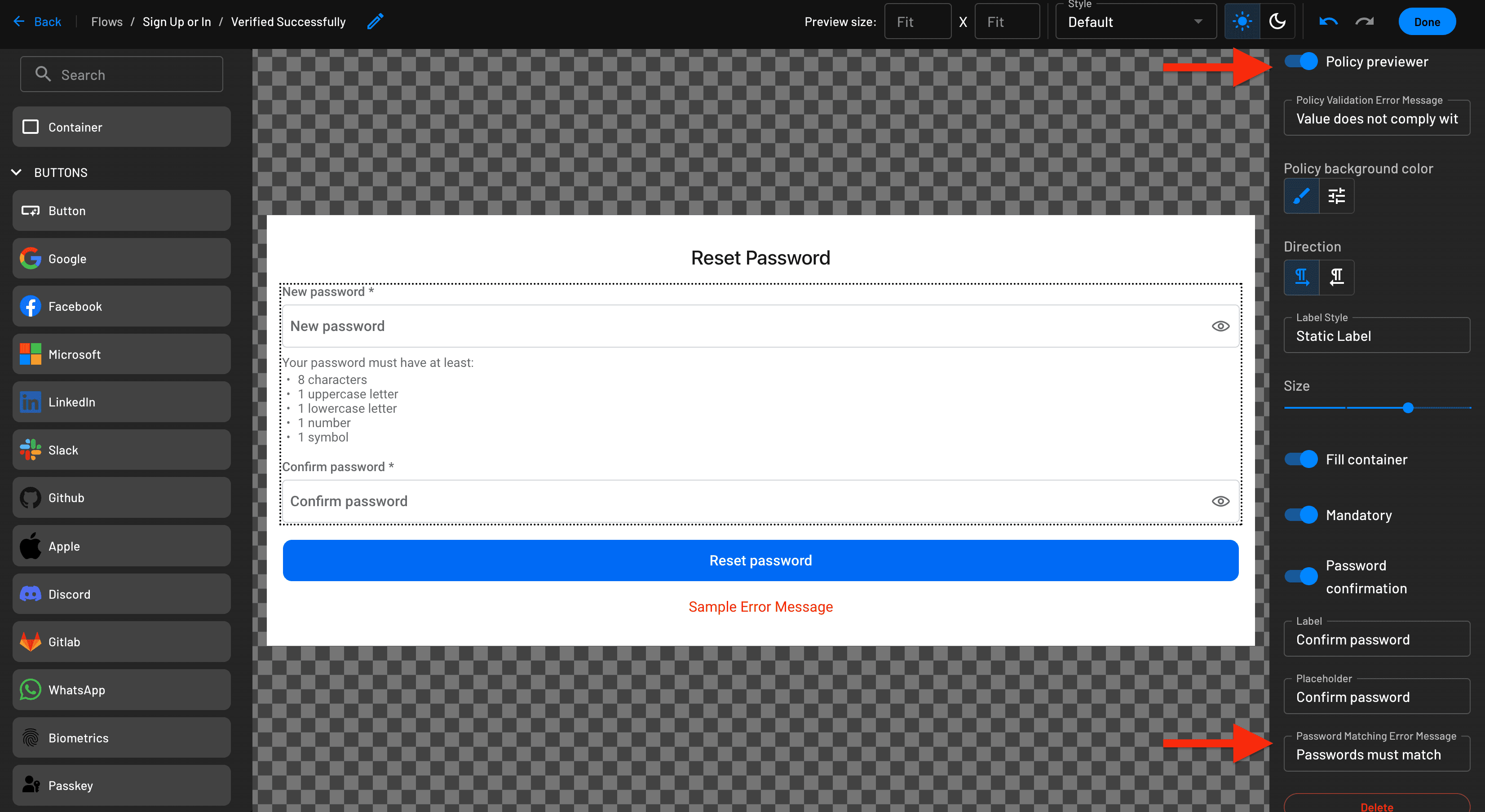
If the Policy previewer is turned on, the validation message will only be displayed after the new password satisfies the policy. If policy is not satisfied, the policy validation message is displayed first.