OneUptime Connector
OneUptime is an open-source observability platform for monitoring, logs, traces, incidents, and status pages. Descope enables you to automatically collect audit and troubleshooting events and stream them to OneUptime as OpenTelemetry (OTLP) logs.
Configure OneUptime connector
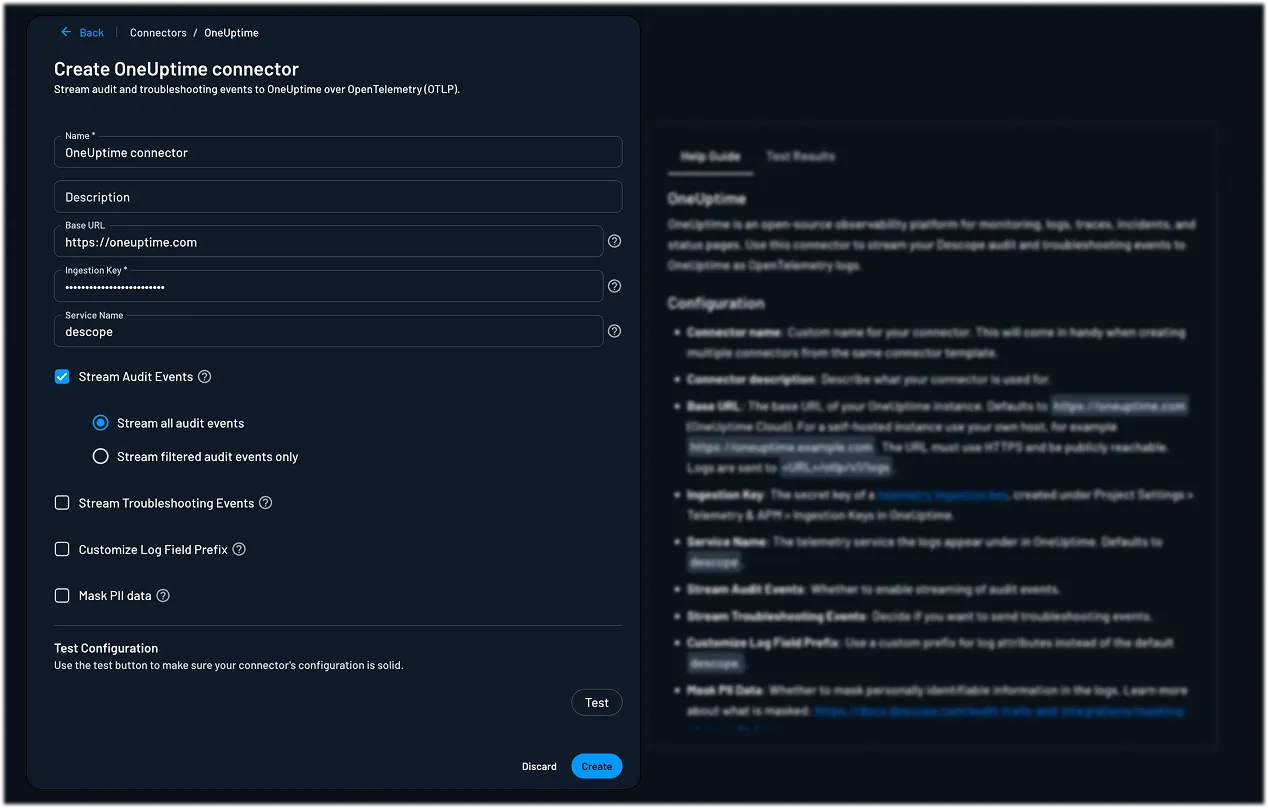
Navigate to the Connectors page in the Descope Console and select OneUptime to create a new OneUptime connector.
The connector has the following settings:
- Connector Name: Provide a unique name for your connector. This assists in distinguishing it, especially when multiple connectors are derived from the same template.
- Connector Description: Briefly explain the purpose of this connector.
- Base URL (optional): The base URL of your OneUptime instance. Defaults to
https://oneuptime.com(OneUptime Cloud). For a self-hosted instance, use your own host, for examplehttps://oneuptime.example.com. The URL must use HTTPS and be publicly reachable. Logs are sent to<URL>/otlp/v1/logs. - Ingestion Key (required): The secret key of a telemetry ingestion key, created in OneUptime under Project Settings → Telemetry & APM → Ingestion Keys.
- Service Name (optional): The telemetry service your logs appear under in OneUptime. Default is
descope. - Stream Audit Events (optional): Select this if you want to stream audit events to your OneUptime account. You can choose to stream all audit events or apply a specific filter.
- Stream Troubleshooting Events (optional): Decide whether troubleshooting events are also sent to OneUptime.
- Customize Log Field Prefix (optional): Override the default
descope.prefix applied to log field names. Enabling this option reveals a Custom Log Field Prefix text field where you can enter your own prefix. - Mask PII data (optional): Decide whether to mask PII (personally identifiable information) in the logs.
Getting the Ingestion Key
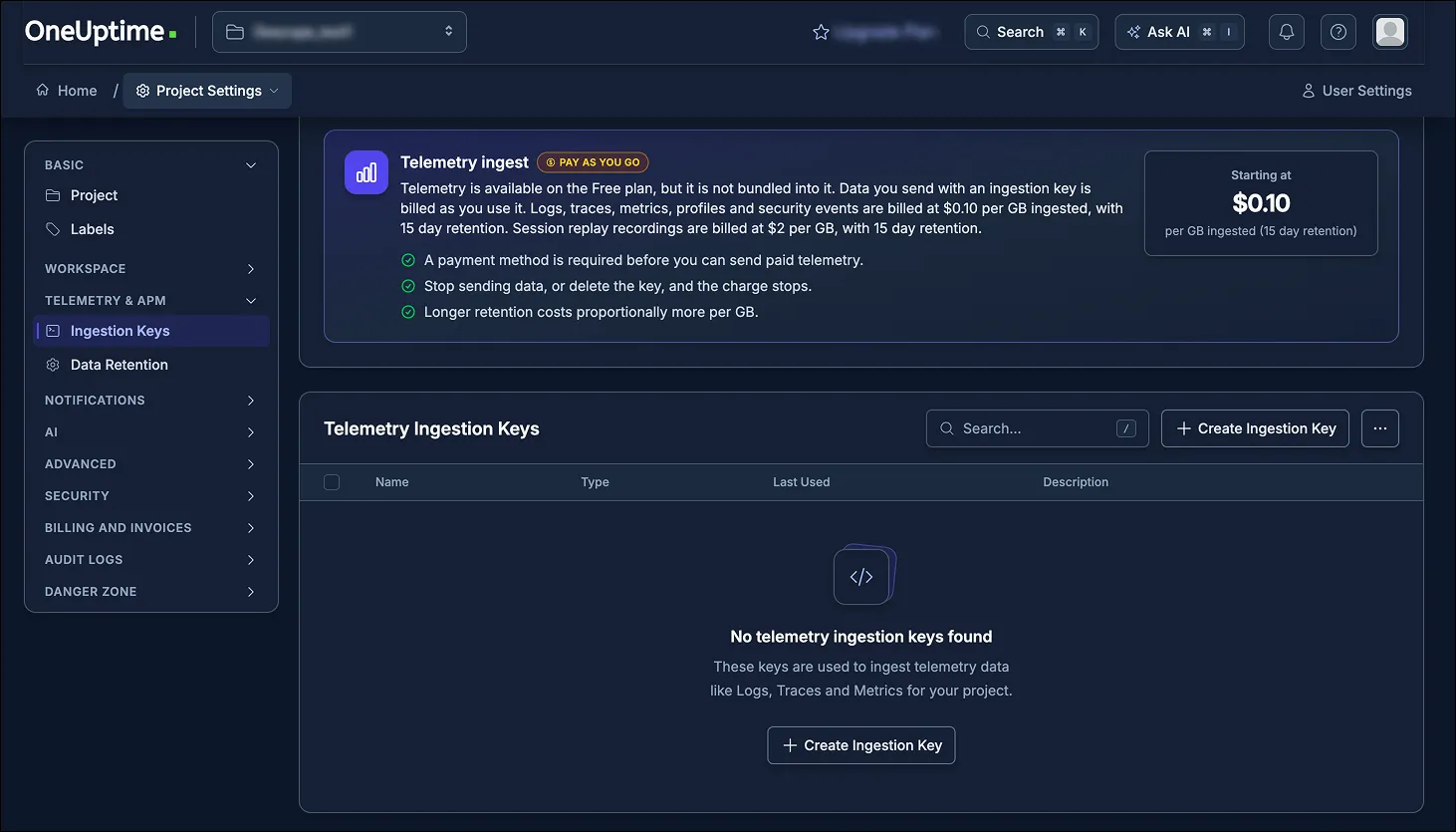
In OneUptime, navigate to Project Settings and select Telemetry & APM in the sidebar, then Ingestion Keys. Create a new ingestion key or use an existing one.
Note
Telemetry ingestion is billed pay-as-you-go and is not bundled into OneUptime's free plan. A payment method must be on file before OneUptime accepts data sent through this connector.
Viewing Audit Logs
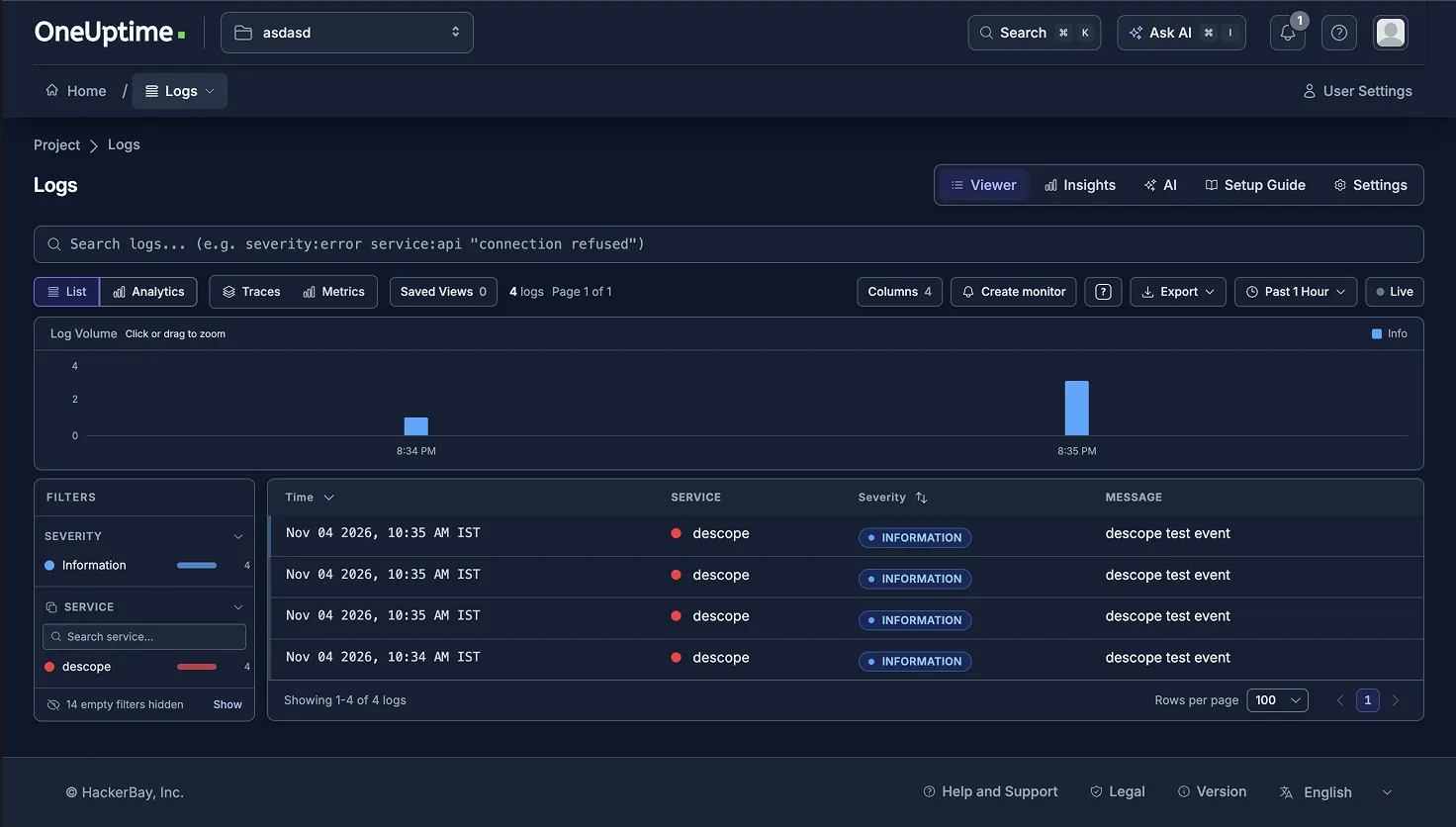
Once configured, audit logs are viewable in OneUptime under the service name you configured. The connector can be tested while configuring it so you can ensure the logs are being sent and collected properly.
The logs can still be viewed in Descope under the Audit and Troubleshoot section of the Descope Console.