Implementing Fraud & Risk Signals
For an overview of how Descope protects your flows, including built-in risk signals and fraud connectors, see Fraud & Attack Protection.
Descope adds fraud and risk signals to the riskInfo context of every flow. You collect some signals with an action or a connector, and Descope sets the rest automatically. Your flow then checks each signal in a condition, so the flow adds friction only when the risk is high.
Using the Fingerprint Assess Action
The Fingerprint Assess action is Descope's built-in risk detection, powered by Cloudflare's network-level analysis. Fingerprint Assess needs no third-party account. To use the Fingerprint Assess action:
- Add a Screen where the user interacts, for example a sign-in, sign-up, or MFA screen.
- Add the Fingerprint Assess action immediately after the screen.
- Check the risk signals in a condition after the Fingerprint Assess action.
Note
The Fingerprint Assess action is separate from the Fingerprint connector, which uses your own Fingerprint.com account. See Fingerprint Assess Action.
What Sets Each Signal?
| Risk Signal | Set by |
|---|---|
riskInfo.botDetected | The Fingerprint Assess action or fraud connectors such as Fingerprint and reCAPTCHA Enterprise |
riskInfo.riskScore | The Fingerprint Assess action. Don't use riskInfo.riskScore in flows that use fraud connectors |
riskInfo.impossibleTravel | Built in. No action or connector needed |
riskInfo.vpnDetected | Built in, from Cloudflare's managed VPN IP list, or can be set by other risk connectors such as the Fingerprint connector |
riskInfo.smsRiskScore | The reCAPTCHA Enterprise connector |
riskInfo.trustedDevice | Built in. See Trusted Devices in Flows |
Checking a Risk Signal in a Flow Condition
Every risk signal is checked the same way, with a condition:
-
In the Flows tab of the Descope Console, open your flow and select the blue
+button. -
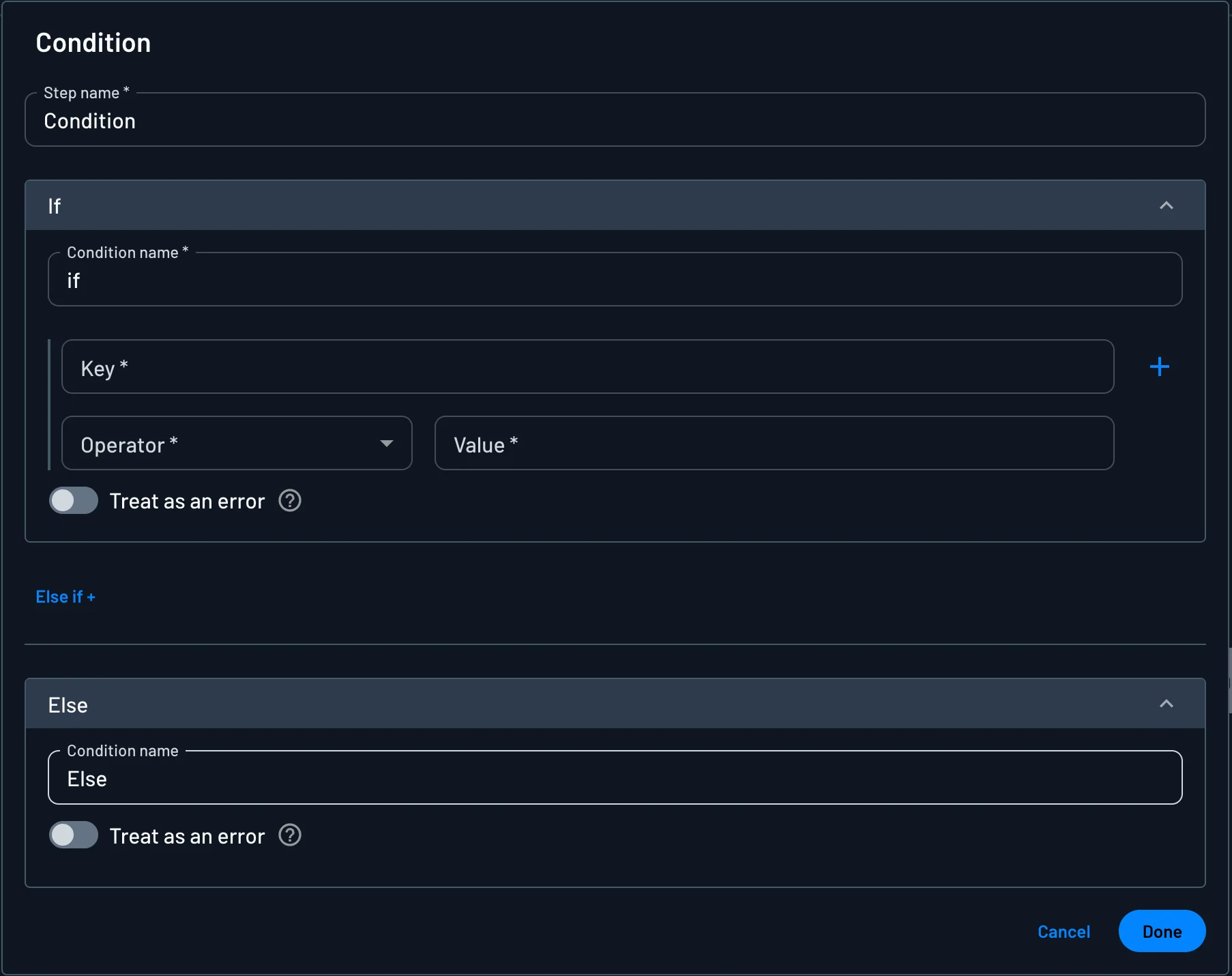
Select Condition, and place the condition after the step that collects the signal, such as the Fingerprint Assess action. The condition editor opens:
-
In the If section, enter the
riskInfokey to check in Key, for exampleriskInfo.botDetected. -
Select the Operator, and enter a Value if the operator requires one:
- For true or false signals, such as
riskInfo.botDetectedandriskInfo.impossibleTravel, use Is True. - For scores, such as
riskInfo.riskScoreandriskInfo.smsRiskScore, use Greater Than with a threshold, for example0.5.
- For true or false signals, such as
-
Select Done.
-
Connect the If outcome to the stricter path, such as MFA, step-up, or a block.
-
Connect the Else outcome to the regular path.
The following sections describe each signal and give an example condition.
Risk Score (riskInfo.riskScore)
The Fingerprint Assess action sets riskInfo.riskScore to a score from 0 to 1, where higher values mean more risk. The score comes from Cloudflare's bot verdict for the request:
| Cloudflare verdict | riskInfo.riskScore | riskInfo.botDetected |
|---|---|---|
| Not a bot | 0.1 | false |
| No verdict available | 0.2 | false |
| Verified good bot, such as a search engine crawler | 0.8 | true |
| Likely a bad bot | 0.9 | true |
| Bad bot | 1.0 | true |
A threshold of 0.5 separates requests that Cloudflare treats as human from requests that Cloudflare treats as bots.
Don't use riskInfo.riskScore with fraud connectors
Risk connectors such as reCAPTCHA, Turnstile, and Telesign also change riskInfo.riskScore, and the resulting value isn't a meaningful score. When your flow uses a fraud connector, check the connector's own output instead of riskInfo.riskScore.
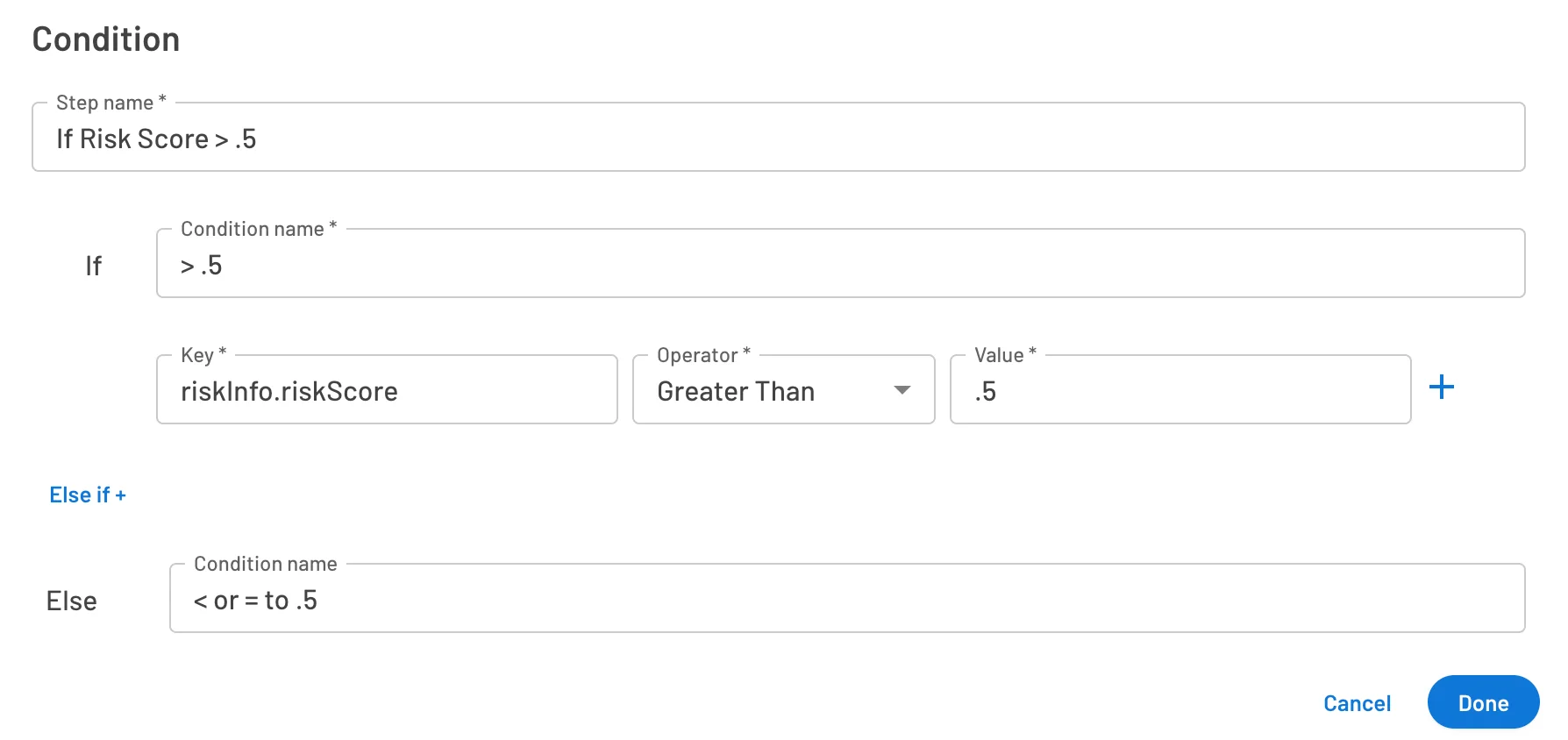
Example Condition
- Add a Screen, for example a sign-in or sign-up screen.
- Add the Fingerprint Assess action immediately after the screen.
- Add a condition on
riskInfo.riskScorewith Greater Than and0.5. - Send the matching outcome to step-up authentication.
Bot Detection (riskInfo.botDetected)
riskInfo.botDetected flags bot-like behavior during authentication attempts.
- Detection sources: Two kinds of sources can set
riskInfo.botDetected:- The Fingerprint Assess action uses Cloudflare's network-level analysis. The Fingerprint Assess action does not fingerprint the browser or device.
- Fraud connectors such as Fingerprint and reCAPTCHA Enterprise can add browser and device signals.
- Combining sources:
riskInfo.botDetectedistruewhen any source in the flow detects a bot, and staystruefor the rest of the flow. - Good bots: Verified good bots, such as search engine crawlers, also set
riskInfo.botDetectedtotrue. - Requirement: Your flow needs the Fingerprint Assess action after a screen, or a fraud connector that detects bots.
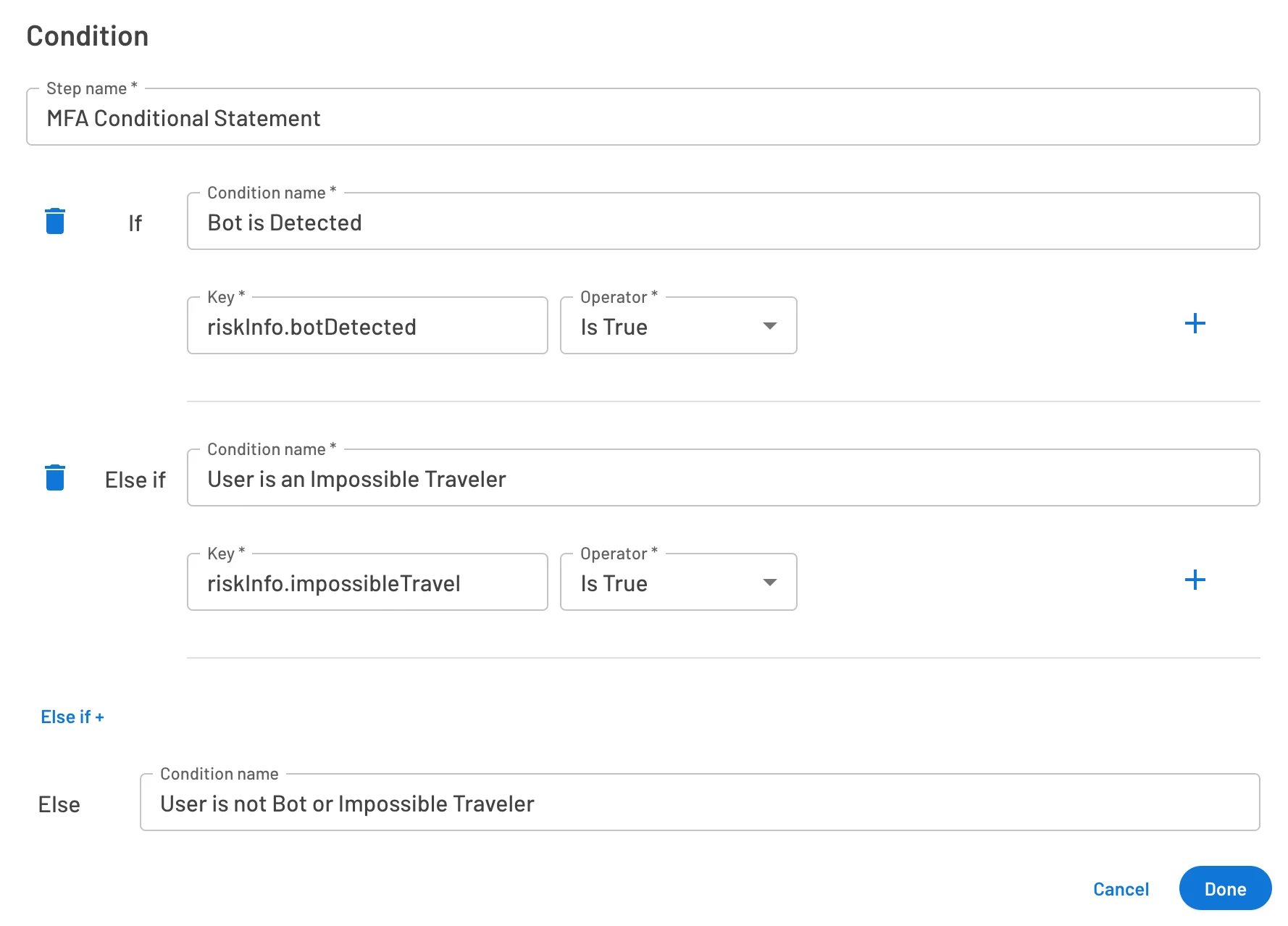
Example Condition
- Add the Fingerprint Assess action after the screen.
- Add a condition on
riskInfo.botDetectedwith Is True. - Send the matching outcome to a block or a stricter authentication path.
VPN Detection (riskInfo.vpnDetected)
riskInfo.vpnDetected flags requests that hide the user's real origin through a VPN.
- Detection source: Descope sets
riskInfo.vpnDetectedfrom Cloudflare's managed VPN IP list. Other risk connectors, such as the Fingerprint connector, can also set it. - Requirement: Your flow needs no extra step. The Fingerprint Assess action is not needed.
- Coverage: Cloudflare's managed list covers known VPN services. For broader VPN and proxy detection, add the Fingerprint connector.
Example Condition
- Add a condition on
riskInfo.vpnDetectedwith Is True. - Send the matching outcome to a stricter authentication path.
Impossible Travel (riskInfo.impossibleTravel)
riskInfo.impossibleTravel flags sign-ins from geographically implausible locations.
- Detection source: Descope compares the location and time of the sign-in with the user's previous sign-ins.
- Requirement: Your flow needs no extra step. The Fingerprint Assess action is not needed.
Example Condition
- Add a condition on
riskInfo.impossibleTravelwith Is True. - Send the matching outcome to re-authentication.
SMS Risk Score (riskInfo.smsRiskScore)
riskInfo.smsRiskScore measures the likelihood of SMS toll fraud, also known as SMS pumping, for the phone number in the flow.
- Detection source: The Assess action of the reCAPTCHA Enterprise connector sets the score, using Google's SMS Defense.
- Range: The score goes from 0.0 to 1.0. A score of 0.0 means low confidence of SMS toll fraud, and 1.0 means high confidence.
- Requirement: Your flow needs the reCAPTCHA Enterprise connector with SMS Defense. The Fingerprint Assess action is not needed.
Example Condition
- Add the reCAPTCHA Enterprise Assess action after the screen where the user enters a phone number.
- Add a condition on
riskInfo.smsRiskScorewith Greater Than and your threshold, for example0.5. - Send the matching outcome to a method that does not send an SMS, such as email OTP, or block the request.
For a complete approach to SMS fraud, see Preventing IRSF and SMS Pumping.
Trusted Device (riskInfo.trustedDevice)
riskInfo.trustedDevice lets users skip MFA on devices the users already verified. For setup and examples, see Trusted Devices in Flows.
Connectors
With the built-in signals in place, you can also check signals from fraud connectors, such as:
- reCAPTCHA Enterprise (bot protection)
- Turnstile (alternative CAPTCHA)
- Telesign (phone number and risk intelligence)
- Fingerprint (device and browser fingerprinting, and VPN and proxy detection)
- Forter and Sardine (fraud and behavioral risk scoring)
For every available fraud and risk connector, see Fraud Connectors.
Using Connector Risk vs. Unified Risk Score
Third-party services like Fingerprint, Turnstile, and Forter provide detailed risk signals optimized for their detection methods.
Aggregating everything into a single risk score may oversimplify your risk analysis.
The Fingerprint Assess action provides riskInfo.riskScore without a fraud connector. When your flow uses any fraud connector, riskInfo.riskScore is no longer reliable, so check each connector's own output instead.
| Approach | When to Use |
|---|---|
Use riskInfo.riskScore | Only when the Fingerprint Assess action is the only risk source in the flow. For example, if riskInfo.riskScore is greater than 0.5, the flow triggers step-up authentication. |
| Use connector-specific outputs | Whenever the flow uses a fraud connector, such as reCAPTCHA, Fingerprint, Forter, or Sardine. Don't check riskInfo.riskScore in these flows. |
For more information about fraud and risk signals and connector options, visit the Fraud & Attack Protection documentation page.