Trusted Devices in Flows
A trusted device lets a user skip additional checks, such as MFA, on a device the user already verified. Trusted devices reduce friction for returning users while keeping MFA in place for new or unrecognized devices.
In a flow, you mark a device as trusted after the user authenticates, then check riskInfo.trustedDevice on later sign-ins to decide whether to ask for MFA.
For an overview of all built-in risk signals, see Fraud & Attack Protection.
Requirements
Descope remembers a trusted device with a trusted device token. Where Descope keeps that token depends on how your project manages session tokens:
- Cookies: Descope sets the trusted device token in an HttpOnly
DTDcookie on your project's cookie domain. If you manage tokens in cookies, trusted devices require a custom domain, which is available on the Pro tier and higher. - Local storage: Descope returns the trusted device token as
trustedDeviceJwtin the authentication response. The Descope web SDK stores the token in local storage and sends the token back in thex-descope-trusted-device-tokenheader on later requests.
Trusted devices do not require the Fingerprint Assess action.
Apps that do not use the web SDK
If your app calls the Descope APIs without the web SDK, for example a native app, your app must store trustedDeviceJwt itself. Your app then sends the token in the x-descope-trusted-device-token header on later requests, so Descope can recognize the trusted device.
Mark a Device as Trusted
After the user authenticates, you can mark the device as trusted in one of two ways:
-
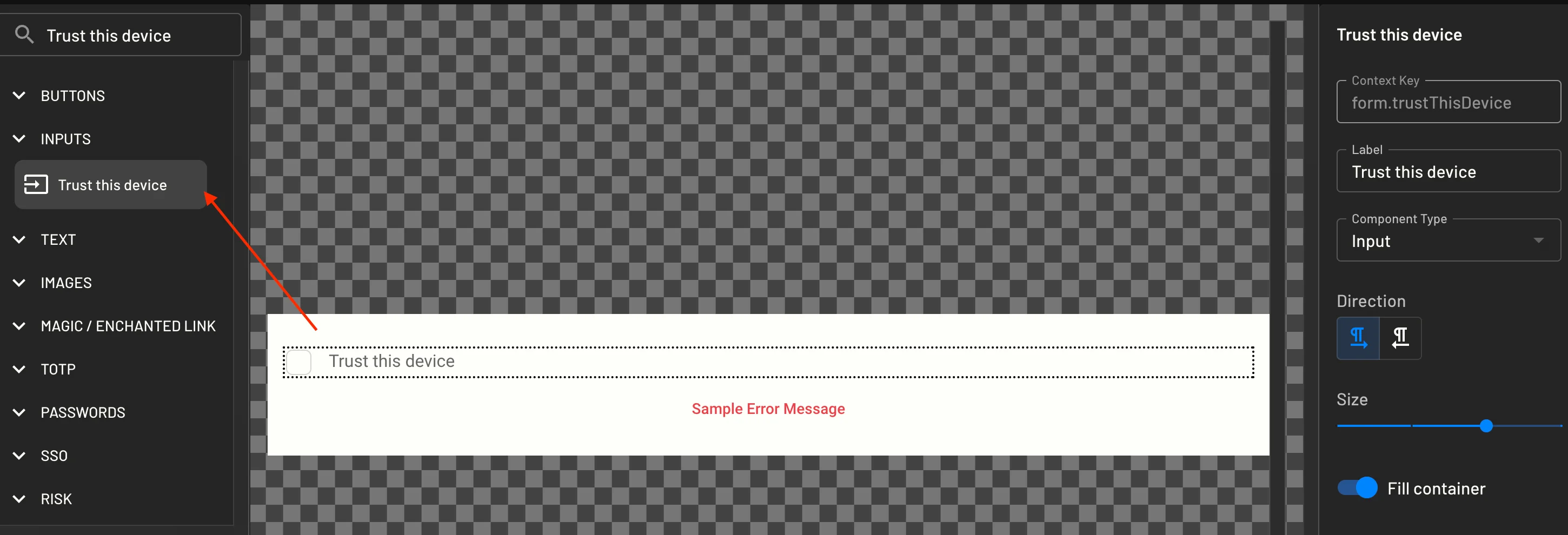
Let the user choose: Add a Trust This Device checkbox to a screen, so the user decides whether to trust the device.
-
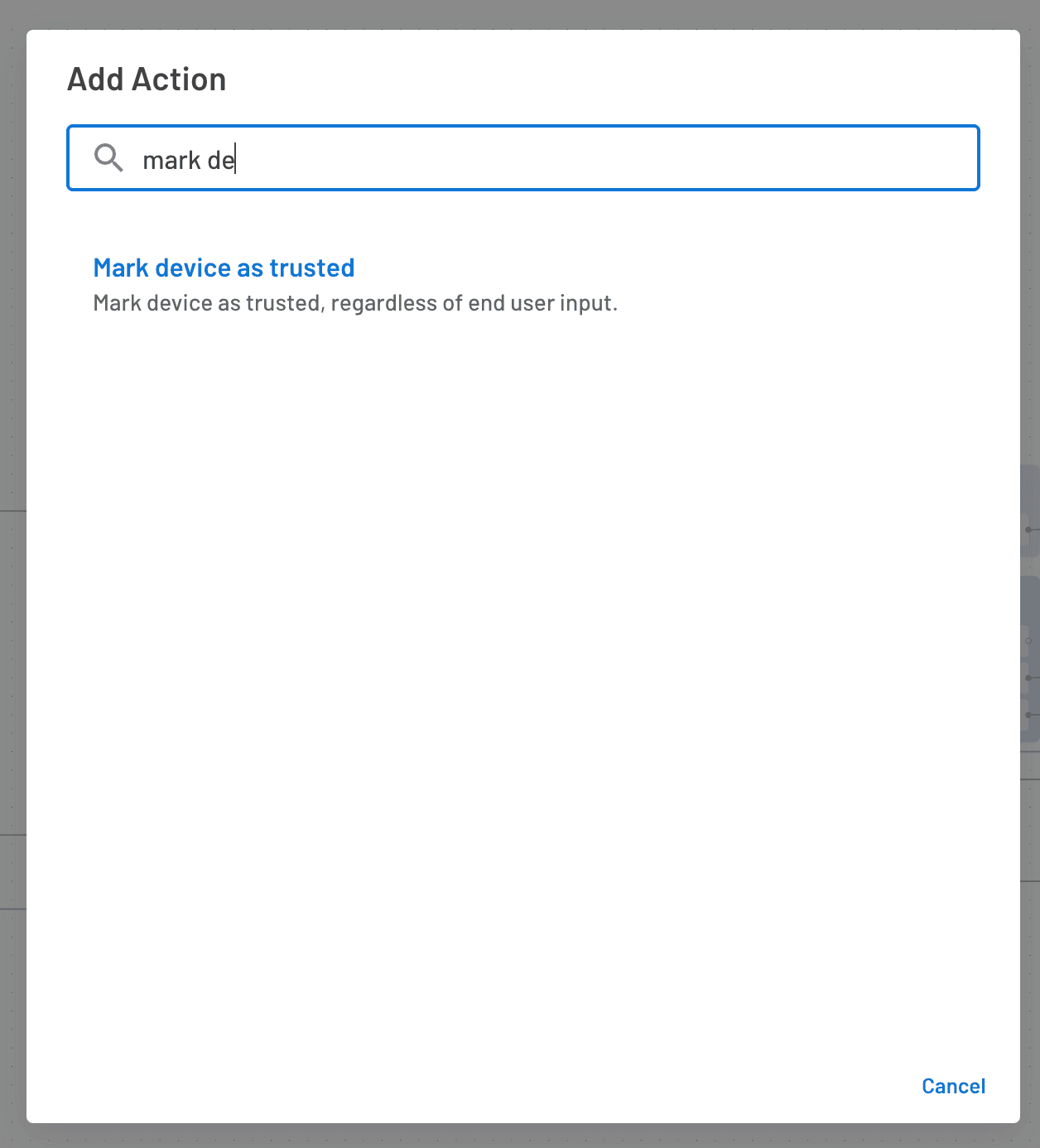
Mark the device automatically: Add the Mark Device As Trusted action to your flow.
Best practice
Mark a device as trusted only after the user completes MFA on the device. Marking a device as trusted before MFA lets the device skip MFA without ever passing the stronger check.
Check for a Trusted Device
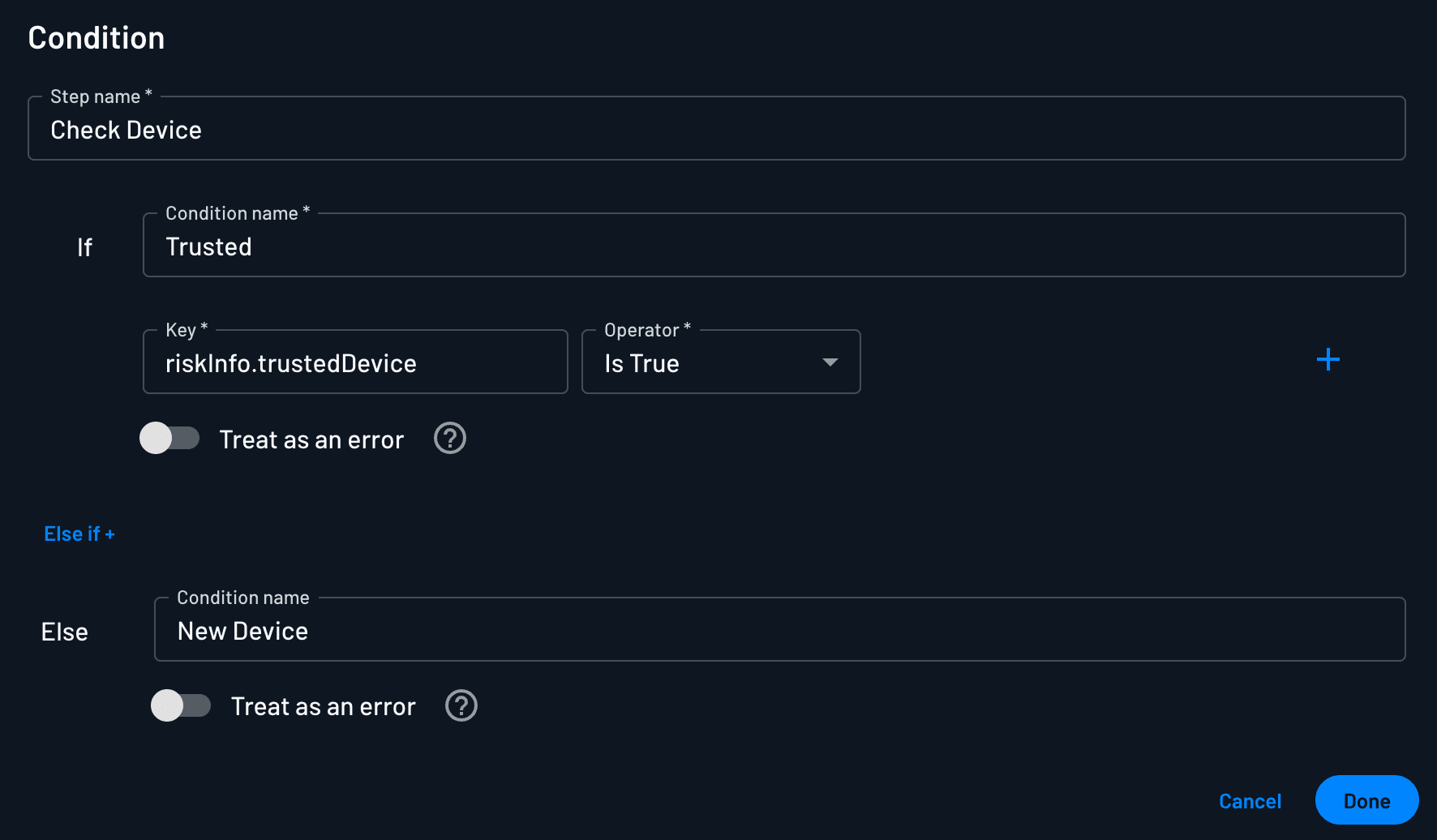
On later sign-ins, add a condition on riskInfo.trustedDevice with the Is True operator:
- If
riskInfo.trustedDeviceis true, skip MFA and continue the flow. - Otherwise, send the user to the MFA steps.
Example Flow
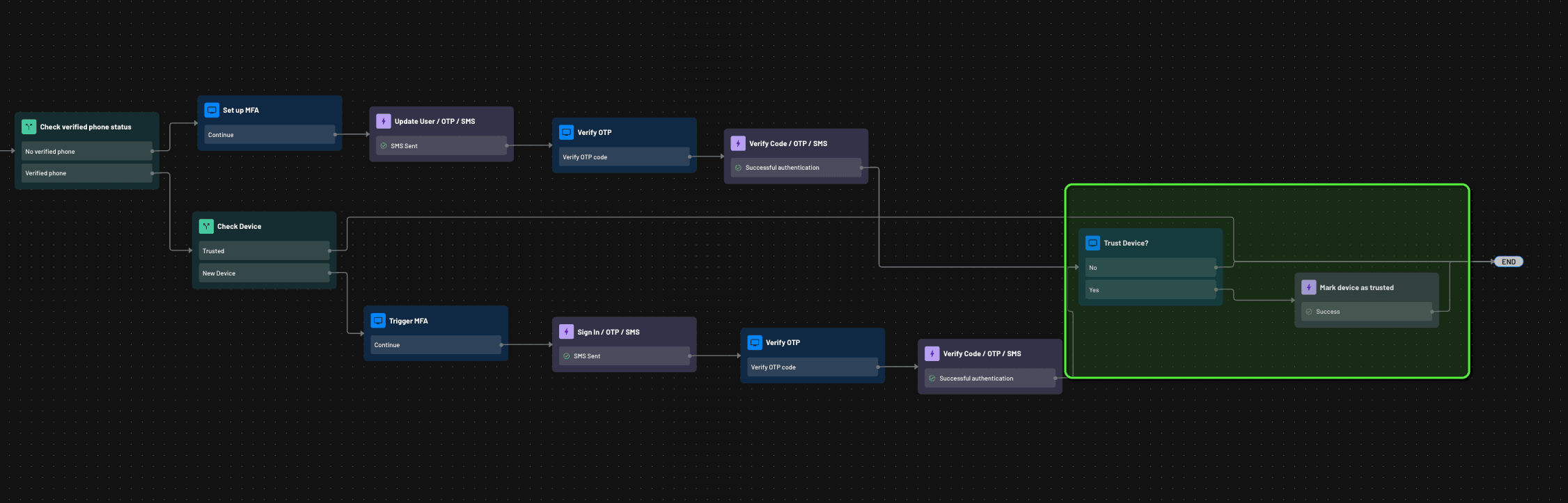
The following flow checks whether the device is trusted. A trusted device skips MFA, and a new device goes through MFA. After MFA succeeds, the flow asks the user whether to trust the device. When the user agrees, the flow runs the Mark Device As Trusted action.
For a step-by-step adaptive MFA guide that uses trusted devices, see Adaptive MFA.
How Long a Device Stays Trusted
A device stays trusted until one of the following happens:
- The Trusted Device Token Timeout in your project settings expires. See Trusted Device Token Timeout.
- The user signs out of the device in the Trusted Devices component of the User Profile Widget. Signing out removes the trust for that device, so the next sign-in from the device goes through MFA again.
In the User Profile Widget, users can see and sign out of their own trusted devices. To show trusted devices without letting users sign out of them, set the Trusted Devices component to Read only in the widget editor. Admins currently cannot see a user's trusted devices.
Trusted Devices and Known Devices
The Mark Device As Known action sets a separate, weaker signal. Descope keeps the known device token in a DKD cookie. When you manage tokens in local storage, the Descope web SDK stores the token and sends the token back in the x-descope-known-device-token header.
Every trusted device also counts as known, so knownDevice is true on a trusted device even if the flow never ran Mark Device As Known. The reverse is not true. A known device does not skip MFA.
| Signal | Set by | Skips MFA? |
|---|---|---|
riskInfo.trustedDevice | Trust This Device checkbox or Mark Device As Trusted action | Yes, when your flow checks riskInfo.trustedDevice |
knownDevice | Mark Device As Known action, which registers a new known device. A trusted device also counts as known. | No. Known devices are a recognition and notification signal only. |
Implementing Fraud & Risk Signals
Learn how to check fraud and risk signals like riskInfo.riskScore, riskInfo.botDetected, and riskInfo.impossibleTravel in flow conditions.
Email Verification Outside of Sign Up/In
Learn how to utilize embedded links to verify a user's email outside of the standard sign up/in flow without magic link.