Customer.io Connector
Using Descope's connectors allows you to use Customer.io, a customer engagement platform, to send transactional emails (such as OTP codes and Magic Links) in your authentication flow with your own Customer.io account. This article will guide you through setting up the connector and incorporating it into your flow.
Configure Customer.io connector
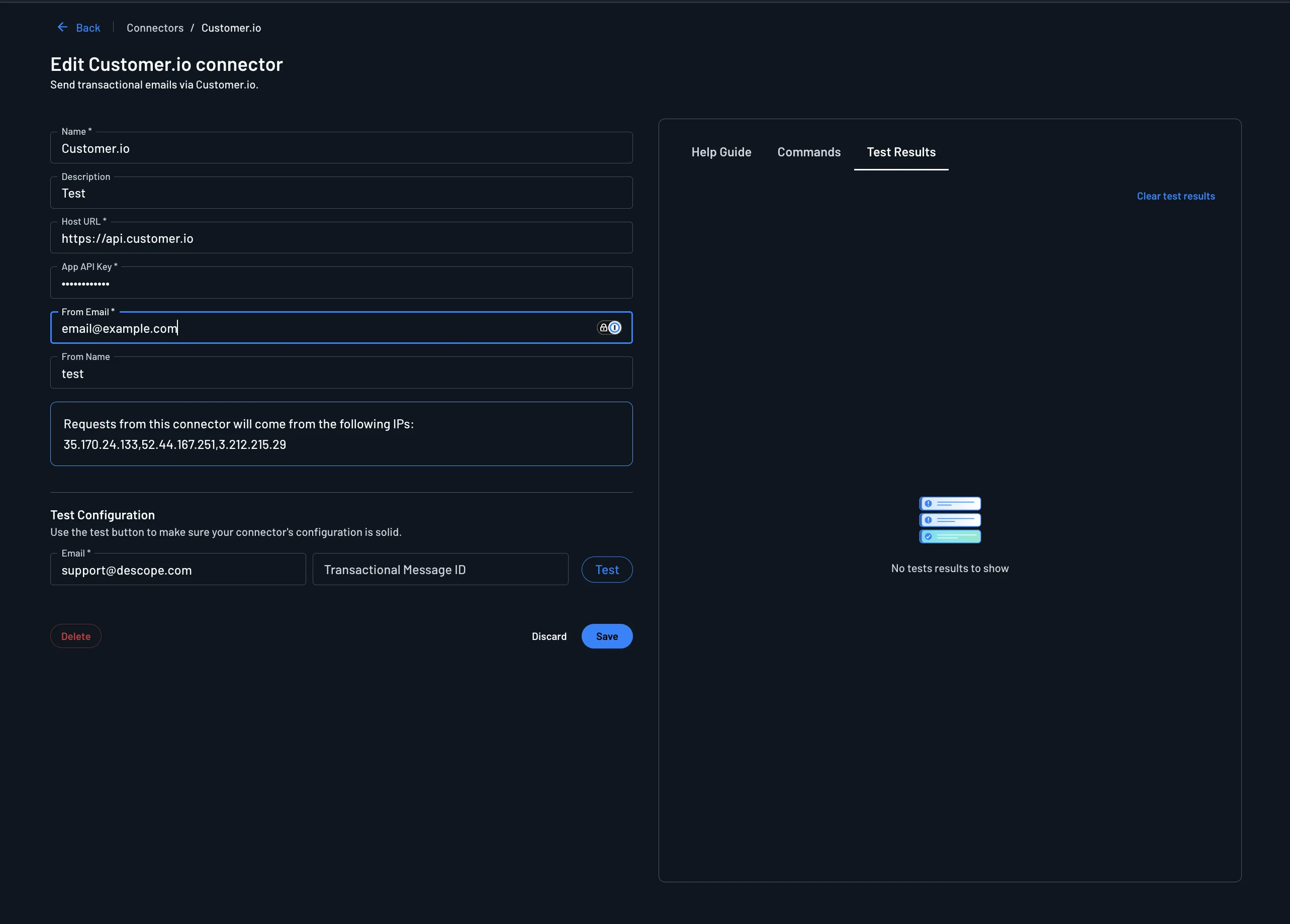
To integrate the Customer.io connector into your project, head to the Connectors page, search for Customer.io, select the connector tile, and configure the following parameters:
- Name: Custom name for your connector. This will come in handy when creating multiple connectors from the same connector template.
- Description: (Optional) Describe what your connector is used for.
- Host URL: The Customer.io transactional email API base URL (for example,
https://api.customer.io). - App API Key: The Customer.io App API key used to authenticate transactional email requests.
- From Email: The email address from which the emails are sent. Make sure it is verified in your Customer.io account.
- From Name: (Optional) The name of the sender to be added to the sender address.
Testing
Before creating your connector, it is important to verify that the configuration works. In the Test Configuration section, enter a From Email and the Transactional Message ID of the Customer.io transactional message to use, then click Test and review the Test Results panel. When it succeeds, click Save.
Using the Connector in Authentication Methods
The Customer.io connector can be used to send OTP codes and Magic Links in your authentication methods.
One-time Password (OTP)
To use the Customer.io connector for email OTP messages:
- Navigate to Authentication Methods -> One-time Password
- In the Email section, select your configured Customer.io connector from the dropdown
- Customize your email template if needed
Your OTP emails will now be sent through Customer.io.
Magic Link
To use the Customer.io connector for Magic Link emails:
- Navigate to Authentication Methods -> Magic Link
- In the Email section, select your configured Customer.io connector from the dropdown
- Customize your email template if needed
Your Magic Link emails will now be sent through Customer.io.
Implementing the Customer.io connector in your flow
You can also use the Customer.io connector to send custom emails within your flows.
1. Select or Create a flow
- Access your Dashboard -> Flows.
- Select an existing flow or create a new one.
2. Add the Customer.io connector to the flow screen
-
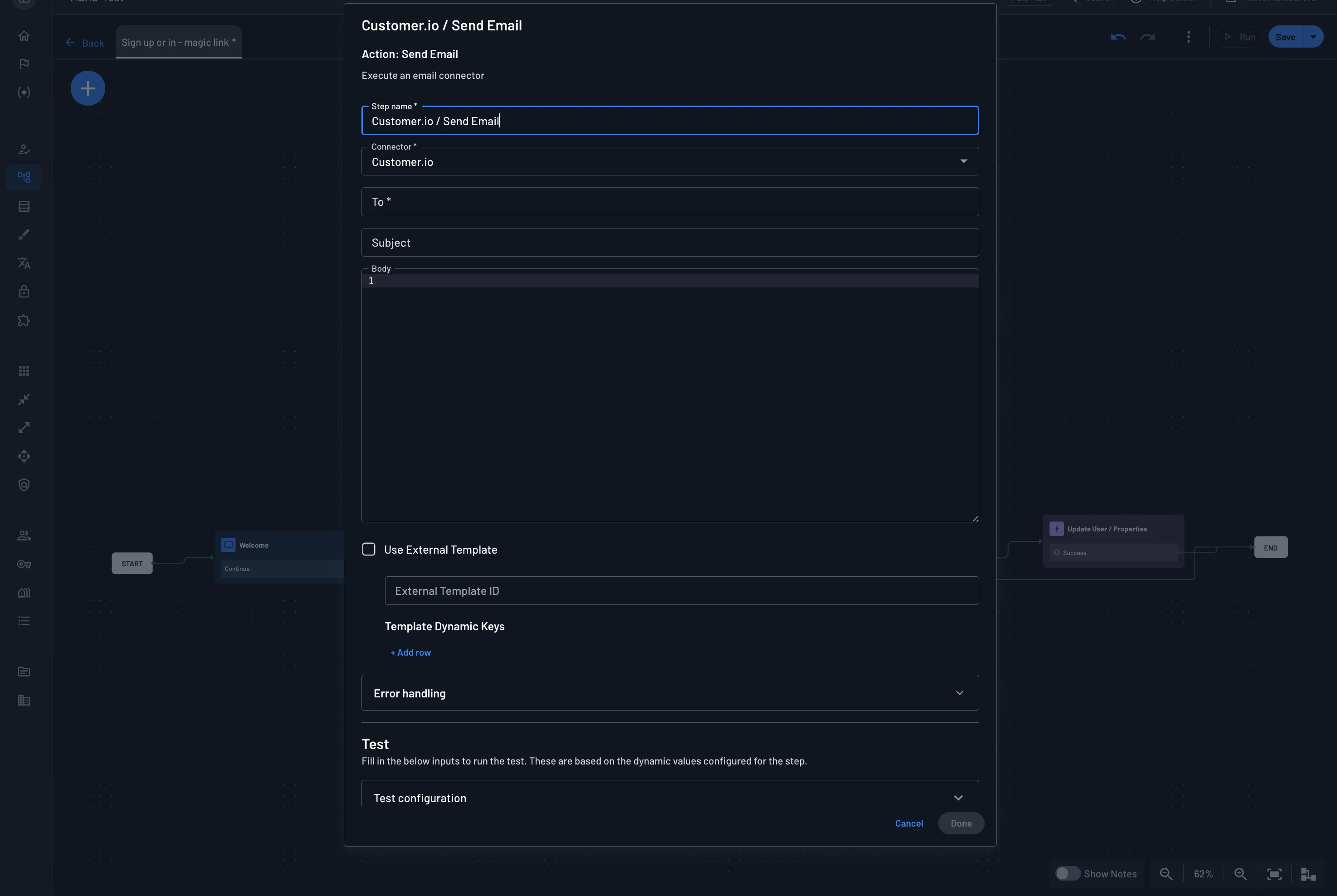
In the flow editor, tap the
+icon, select Connector, and choose Customer.io / Send Email. -
Click to configure the connector and fill out the fields:
- To: Who the email should be sent to. Setting this dynamically based on previous attributes is recommended (eg.
{{user.email}}). - Subject: Enter the subject of the email.
- Body: Enter the body text of the email.
- To: Who the email should be sent to. Setting this dynamically based on previous attributes is recommended (eg.
Using an external template
Instead of composing the subject and body in Descope, you can render the email from a transactional message template that you manage in Customer.io. Enable the Use External Template toggle and enter the Customer.io Transactional Message ID in the External Template ID field.
When Use External Template is enabled:
- Customer.io renders the email from the referenced transactional message template, so the Subject and Body fields entered in Descope are not used.
- You can still pass dynamic values from your flow (such as
{{user.email}}in the To field). Any properties your Customer.io template expects should be provided as message data - see Customer.io's transactional email documentation for the properties your template supports.
Leave the toggle off to compose the email content directly in Descope using the Subject and Body fields.
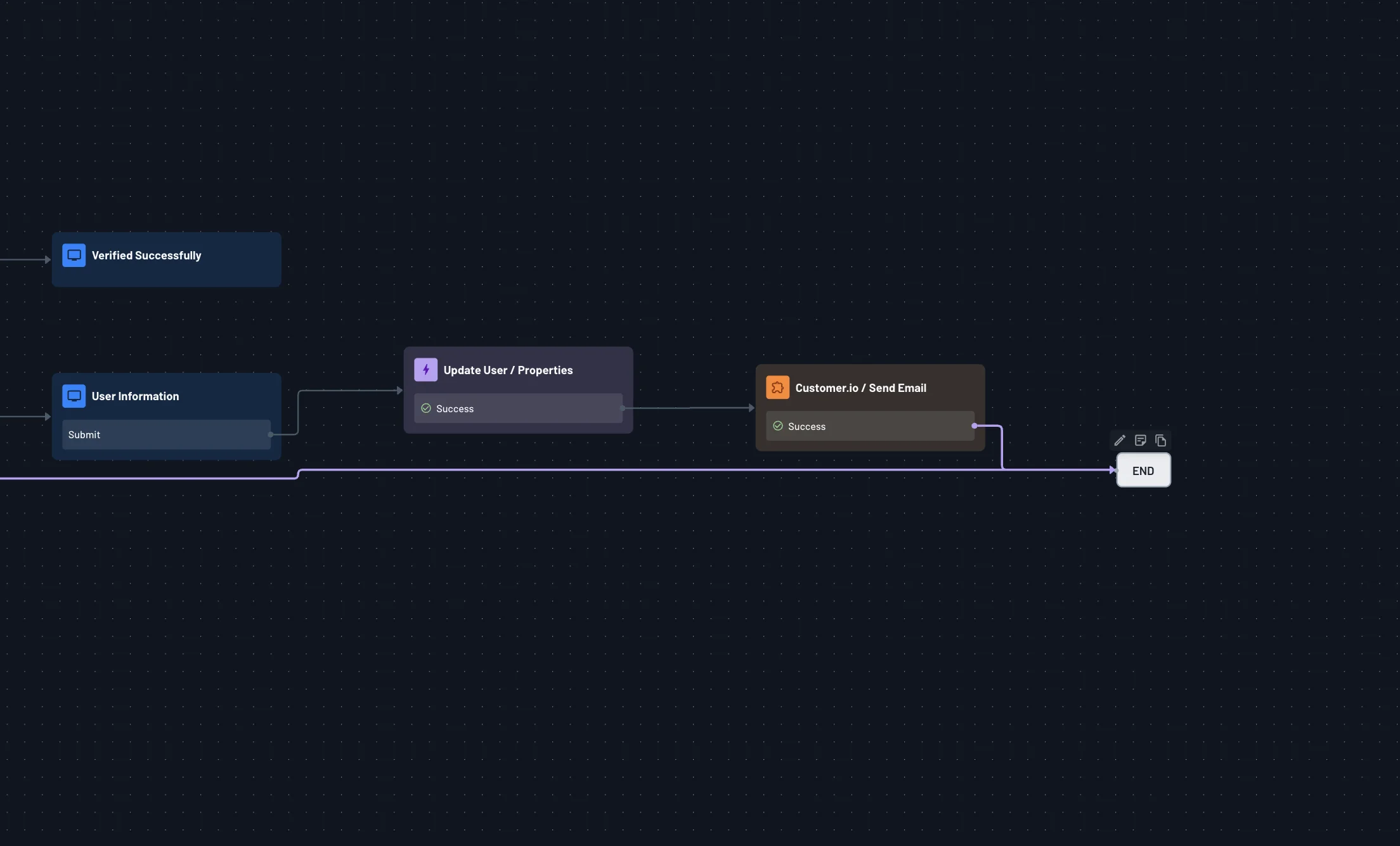
Once configured, the Customer.io connector step runs as part of your flow:
This connector uses Customer.io's transactional email to deliver Descope authentication messages (OTP codes, Magic Links). It is separate from Customer.io's marketing features such as Journeys and broadcasts.