Apple Push Notification (APN) Connector
Send push notifications using Apple's Push Notification service. For more information about Apple Push Notifications, visit the Apple documentation.
Configuration
To configure the Apple Push Notification connector, go to the Connectors page within the Descope Console, search for Apple Push Notification (APN), and select the connector card.
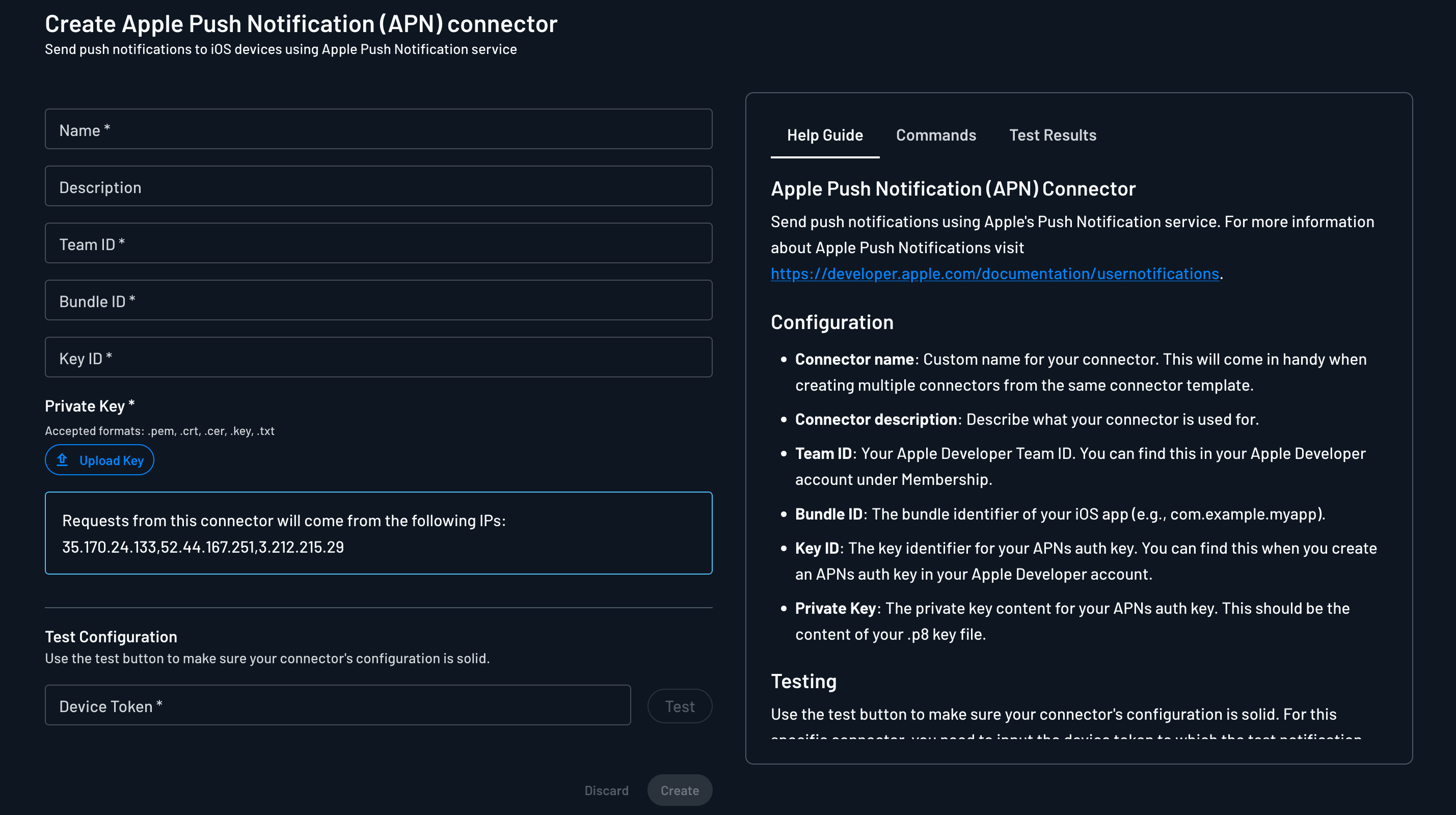
Settings
Below is a list of applicable settings for the Apple Push Notification (APN) connector:
- Connector name: Custom name for your connector. This will come in handy when creating multiple connectors from the same connector template.
- Connector description: Describe what your connector is used for.
- Team ID: Your Apple Developer Team ID. You can find this in your Apple Developer account under Membership.
- Bundle ID: The bundle identifier of your iOS app (for example,
com.example.myapp). - Key ID: The key identifier for your APNs auth key. You can find this when you create an APNs auth key in your Apple Developer account.
- Private Key: The private key content for your APNs auth key. This should be the content of your
.p8key file.
Descope uses token-based APNs authentication, so a single key works for both the development (sandbox) and production environments.
Testing
You can test if your connector's configuration is working properly by hitting the Test button and viewing the Test Results panel. For this connector, enter the device token to which the test notification will be sent.
Save your configuration by hitting Create.
Activating the Connector
Use the Apple Push Notification (APN) connector to deliver push authentication requests on iOS. After you create the connector, select it in Push Authentication settings.
For full setup of enrollment, notification payloads, and SDK usage, see Push Authentication.