Salesforce Marketing Cloud Connector
Using Descope's connectors allows you to use Salesforce Marketing Cloud (SFMC), a comprehensive digital marketing platform, to send emails in your authentication flow. This article will guide you through setting up the connector and incorporating it into your flow.
Configure Salesforce Marketing Cloud connector
Configuring the connector
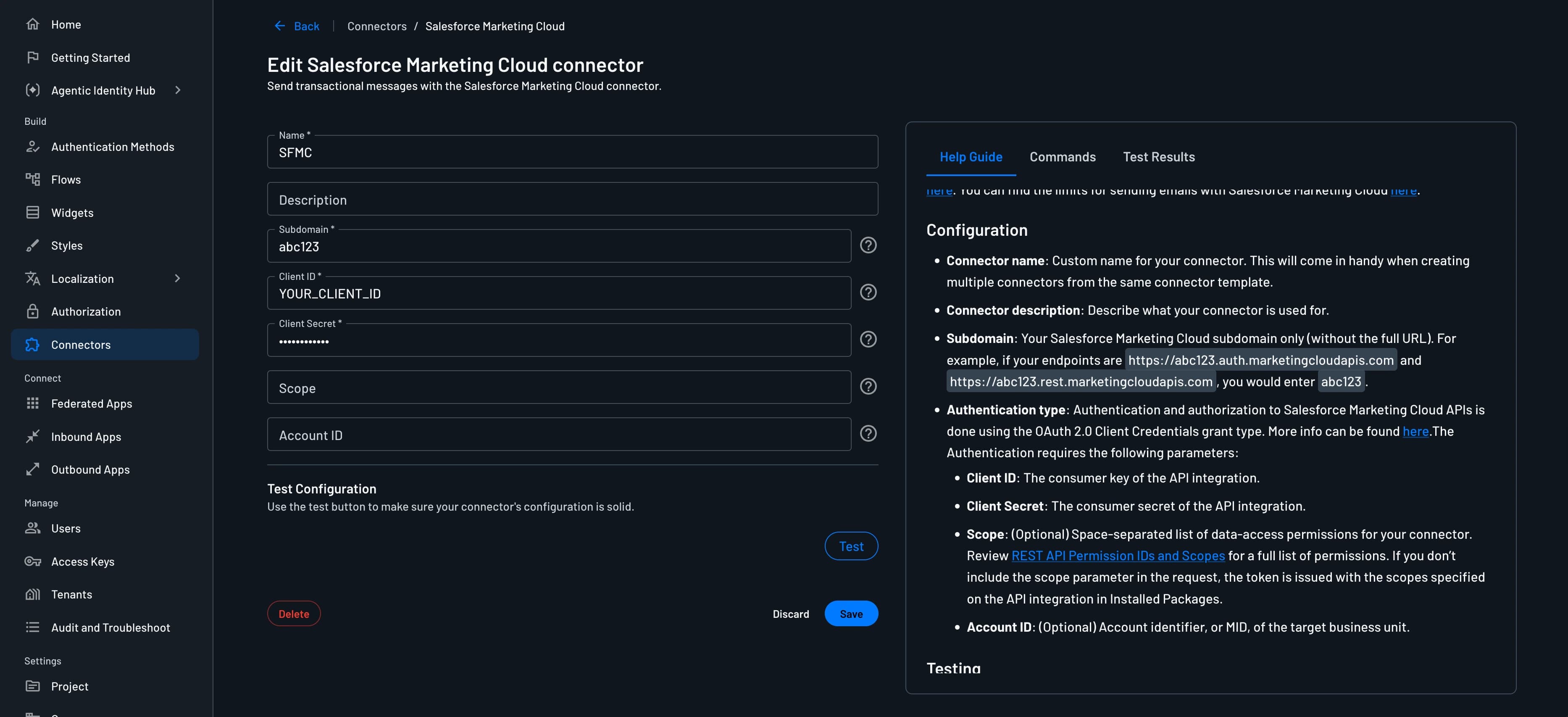
To integrate the Salesforce Marketing Cloud Connector into your project, head to the Connectors page, select the Salesforce Marketing Cloud connector, and configure the following parameters:
- Connector name: Provide a unique name for your connector. This assists in distinguishing it, especially when multiple connectors are derived from the same template.
- Connector description (optional): Briefly explain the purpose of this connector.
- Subdomain: Your Salesforce Marketing Cloud subdomain only (without the full URL).
- Client ID: The consumer key of the API integration.
- Client Secret: The consumer secret of the API integration.
- Scope (optional): Space-separated list of data-access permissions for your connector.
- Account ID (optional): Account identifier, or MID, of the target business unit.
Testing
Before creating your connector, its important to verify if the connector configurations works. For this simply click on Test and view the Test Results panel. Confirm it works and click Create.
Using the Connector in Authentication Methods
The Salesforce Marketing Cloud connector can be used to send OTP codes and Magic Links in your authentication methods.
One-time Password (OTP)
To use the SFMC connector for email OTP messages:
- Navigate to Authentication Methods -> One-time Password
- In the Email section, select your configured Salesforce Marketing Cloud connector from the dropdown
- Customize your email template if needed
Your OTP emails will now be sent through Salesforce Marketing Cloud.
Magic Link
To use the SFMC connector for Magic Link emails:
- Navigate to Authentication Methods -> Magic Link
- In the Email section, select your configured Salesforce Marketing Cloud connector from the dropdown
- Customize your email template if needed
Your Magic Link emails will now be sent through Salesforce Marketing Cloud.
Implementing the Salesforce Marketing Cloud connector in your flow
You can also use the Salesforce Marketing Cloud connector to send custom emails within your flows.
1. Select or Create a flow
- Access your Dashboard -> Flows.
- Select an existing flow or create a new one.
2. Add the Salesforce Marketing Cloud connector to the flow screen
-
In the flow editor, tap the
+icon, select Connector, and choose Salesforce Marketing Cloud / Send Email or Salesforce Marketing Cloud / Upsert Rowset based on your use case.- Send Email: Use this to send a custom email to the user.
- Upsert Rowset: Use this to upsert a rowset to Salesforce Marketing Cloud.
-
Click to configure the connector and fill out the fields:
- To: Who the email should be sent to. Setting this dynamically based on previous attributes is recommended.
- Subject: Enter the subject of the email.
- Body: Enter the body text of the email.
